Guide to using MSP430
Jul 30, 2025

Installing Drivers
As far as I can find there are no new standalone driver installations, the following installation is the easiest that I am aware of.
The most up-to-date drivers are packaged with a software named "Code Composer Studio", fortunately there is a cloud package of this software which will only require installation of a chrome browser extension and the drivers.
Click on "Launch" to open the web app
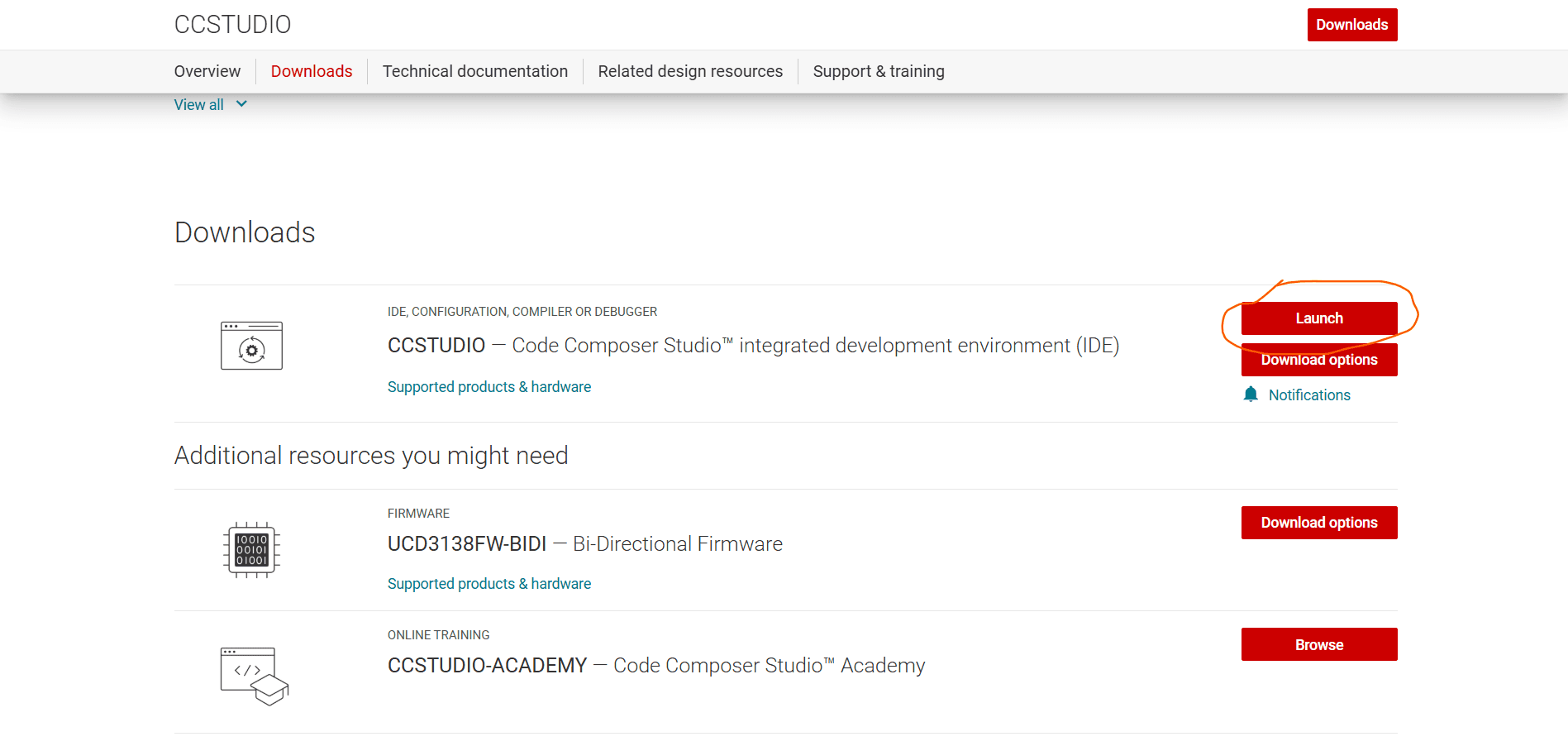
Log in with TI account, create one if you do not already have one
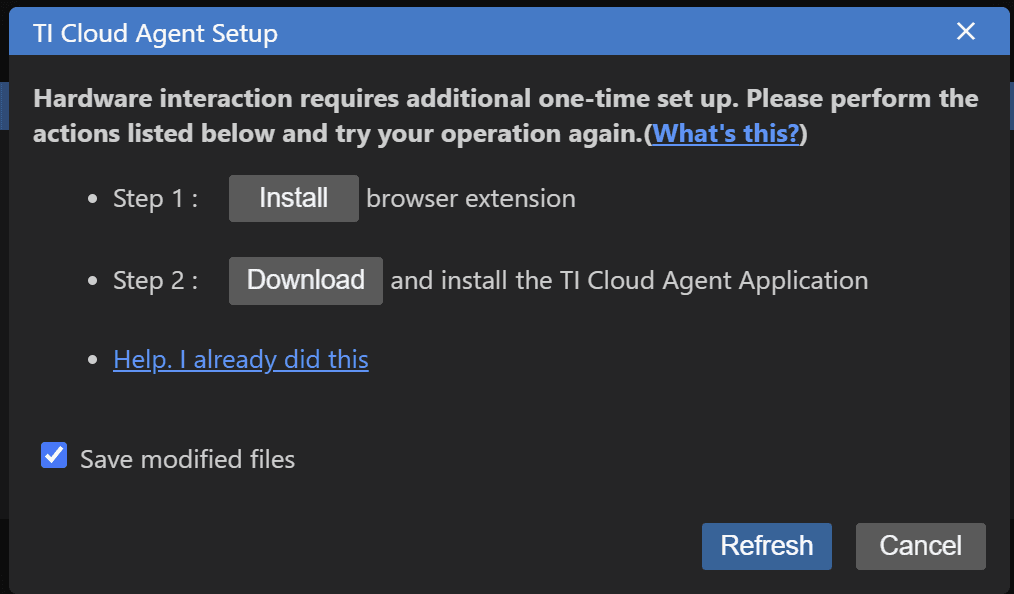
Once in, install both of the first two steps:
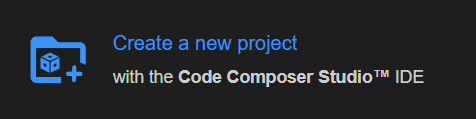
Create new project:
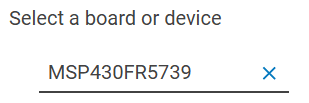
Enter: MSP430FR5739 as your board
Pick an example code, I will use an LED blink example

Flash the project, this should do the required processes for drivers regardless of whether you have a MSP connected or not.
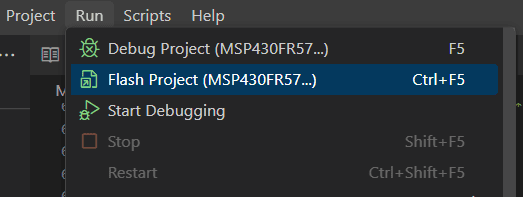
At this point is should begin installing the required drivers, allow this to happen.
Having now installed the required drivers, you are welcome to continue using Code Composer Studio, however the following section will instruct you how to use Arduino IDE with MSP (this is the modern Energia alternative).
Using .ino Files
This section assumes you have the Arduino IDE (v2.3.6) installed locally already, and have an MSP board connected physically.
We'll be installing a MSP boards package into the Arduino IDE, so that the programs we write can be flashed appropriately. We'll be using the package supplied here, but there is no requirement to visit that site.
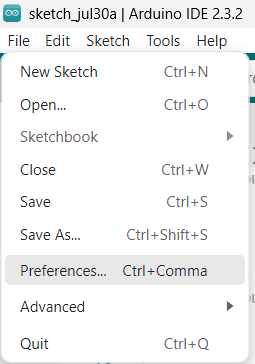
Open "File" > "Preferences" (ctrl + ,)
Add the following URL to the "Additional Boards manager" section:
https://raw.githubusercontent.com/Andy4495/TI_Platform_Cores_For_Arduino/main/json/package_energia_optimized_index.json
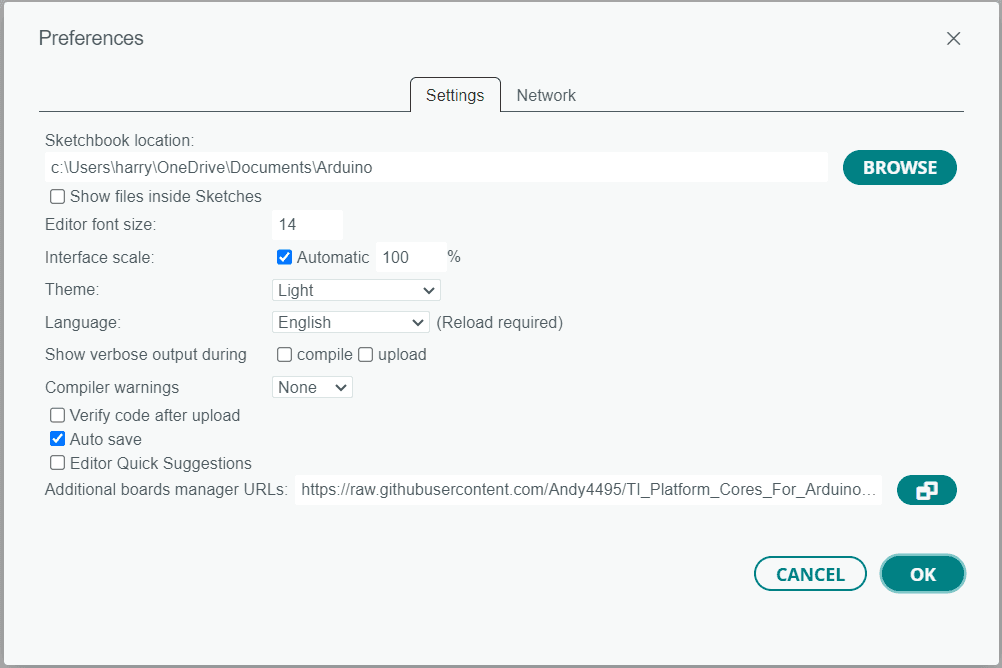
Click "OK"
In the header "Select board" > "Select other board and port…"
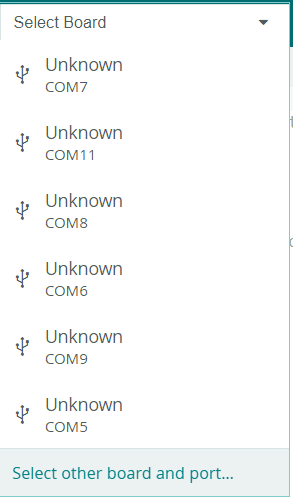
Search for your MSP board, for me
MSP-EXP430FR5739LPand select your COM port
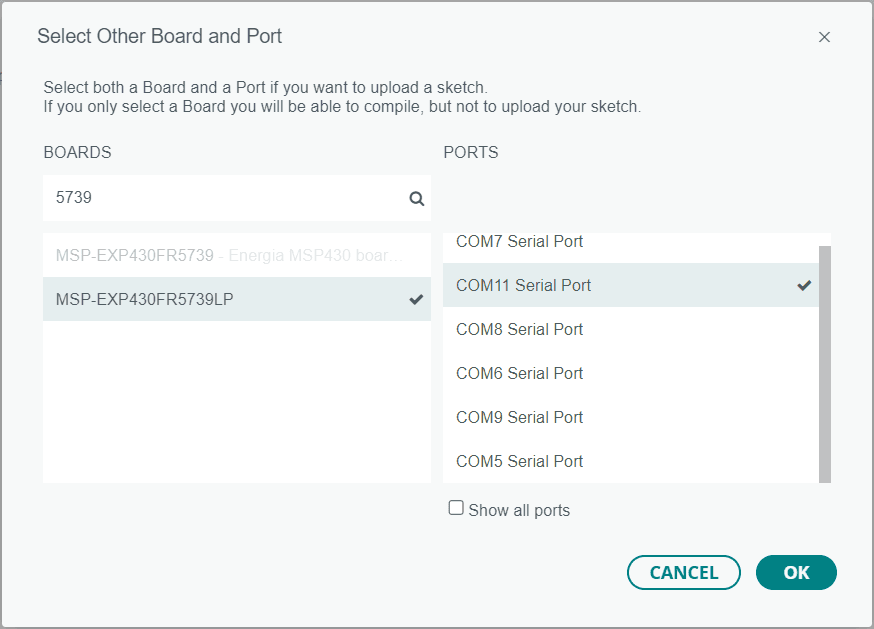
Upload as normal! The first time it may ask you to install the board, this is normal, accept the installation.
If you have any issues, please email me at harry.cassidy@student.curtin.edu.au
Credit to Robert Lewis