Guide to SSH with VSCode into Curtin Uni Computer Science Labs
Jul 21, 2025

You will need the following:
A PC or Mac computer
An internet connection
Microsoft Visual Studio Code
How to find the instructions for downloading and setting up the VPN software:
Access the SupportU Hub, located under Useful links in the My Studies tab on Oasis
Search for the instructions by typing VPN in the search bar
The knowledge articles for installation of Mac and Windows compatible VPN software are both available
Connecting to the Computer Science (CS) Labs:
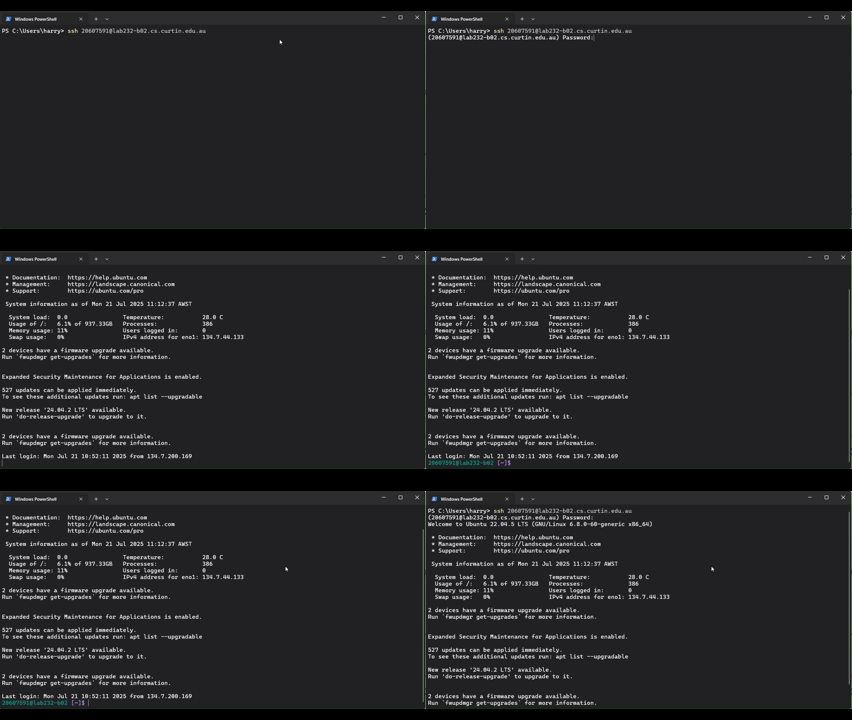
To connect to the CS labs, we will have to use SSH (Secure Shell) protocol.
In a terminal we can simply use:ssh 'StudentID'@'labID'-'PCID'.cs.curtin.edu.au
An example, for COMP3007 I would run ssh 20607591@lab232-a01.cs.curtin.edu.au
Connecting using VSCode:
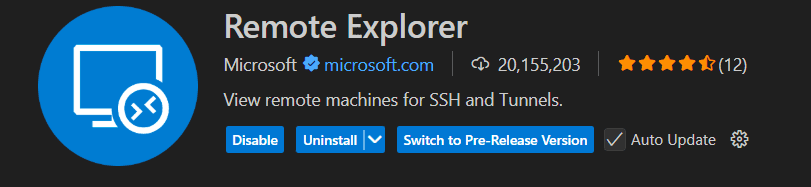
The first step is to install the extension "Remote Explorer", it should automatically install "Remote - SSH" and "Remote - SSH: Editing Configuration Files" extensions too.
We are almost there! Now to connect to the lab.
Open the Remote Explorer tab
Add a new remote:
Click the "New Remote" button on the SSH bar
Enter your SSH line (for me
ssh 20607591@lab232-a01.cs.curtin.edu.au)Select default config location (for me
C:\Users\harry\.ssh\config)Tada! The extension will automatically update your config file
Connect to the remote:
Click the "Connect in Current Window" or "Connect in New Window" on the Remote bar
You will be prompted to select the platform of the remote - Select Linux from the dropdown
It will provide the fingerprint of the SSH connection - select continue
You will be prompted to enter your password - do so
You should be connected! At this stage I would clone a git repo (Eg. This one)
Next time you go to connect you will have to re-enter your password but that is all, you will also be presented with windows you have previously opened with this address (eg your cloned repo)
Sometimes issues:
Sometimes the password prompt is weird, you can also click on the "details" in the bottom right corner to open the connection terminal and enter your password there. You will likely then be prompted again to enter your password in a dialog box.
If you encounter any issues or just need more help feel free to reach out!
My email is 20607591@student.curtin.edu.au